


|
|
|
|
|
VisionVPM is a business tool designed to help streamline your veterinary practice. Combined with Provet e-Order and a fully integrated general ledger, it offers a seamless inventory control and practice management system that will add significant value to the way you do business and benefit your bottom line.
Your VisionVPM software should now be loaded on your clinic computer or you have access to a demonstration version that is ready to go. So what happens next?
|
Find the VisionVPM icon on your desktop. |
Double click to open VisionVPM.
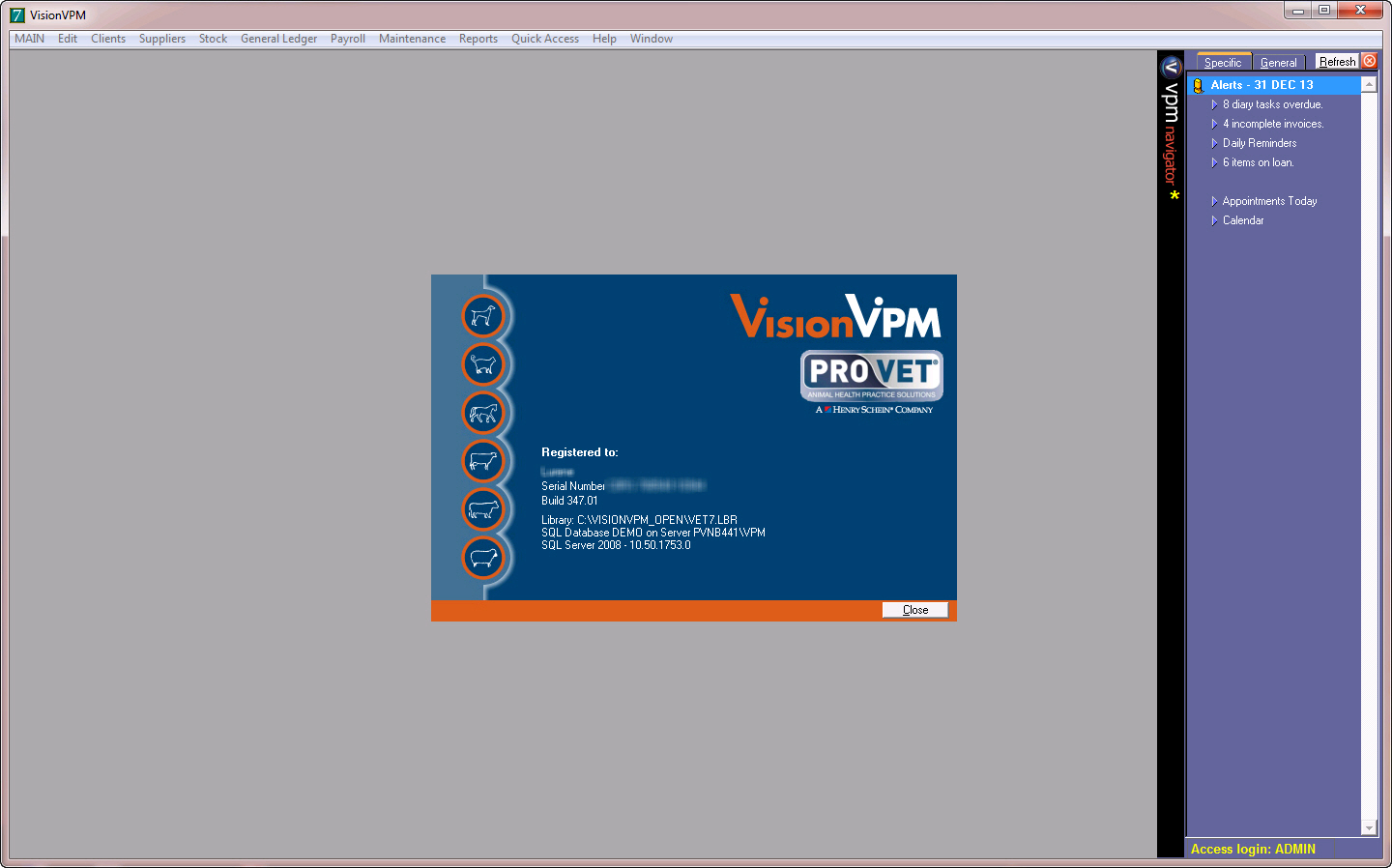
The splash screen will disappear if you click on any of the options from the Main menu.
If you are logging into the demonstration database for VisionVPM, the menu bar will be configured for VPMDemo.
If this is your live database the menu bar will be configured for Main or your practice name.

The menu bar contains access to the modules within VisionVPM:
The Main menu contains access to the following options:
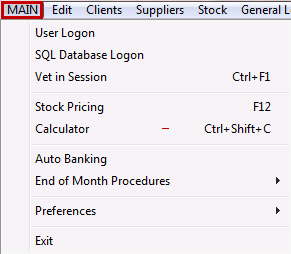
All modules can be accessed using keyboard shortcuts, the menu or the Navigator Pane.
The Quick Access setup allows you to set up keyboard shortcuts for areas of your choice.
You can choose to move around VisionVPM using keyboard shortcuts. On each menu, a keyboard shortcut is listed for many of the options.

For example, to search for clients in the Client module, press CTRL+F2.
To move between VisionVPM and the Appointment Schedule, press CTRL + Z
When a module is selected from the menu bar, that module's options are then available.
For example, if the Clients module is selected, the Clients menu is then displayed.
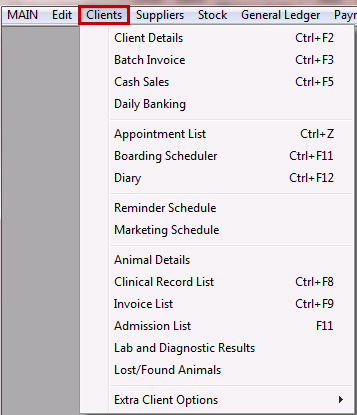
To select an item from the menu, double-click the required item or use the keyboard shortcut listed.
The Navigator Pane is an optional function, displayed on the right-hand side of the VisionVPM window.
If it is not displayed, go to Quick Access > Show VPM Navigator.
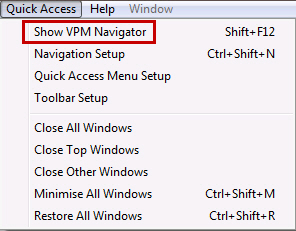
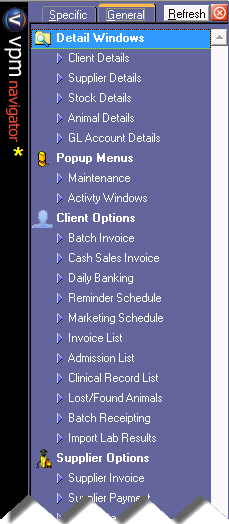
To access items from the VPM Navigator pane, simply double-click the required option.
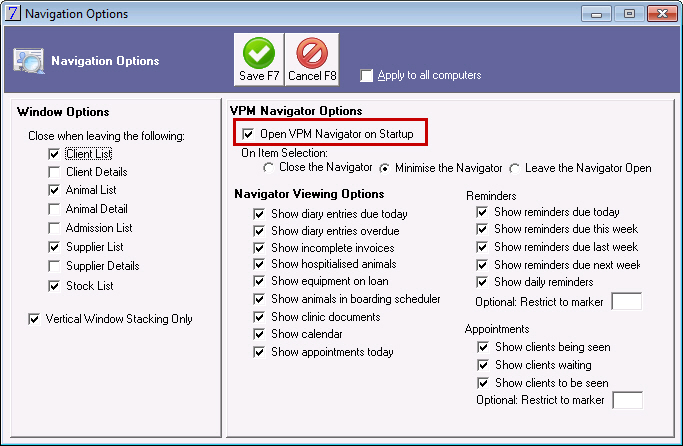
To open the VPM Navigator automatically when starting VisionVPM, go to: Quick Access > Navigation Setup.
Select the Open VPM Navigator on Startup check box and click Save.
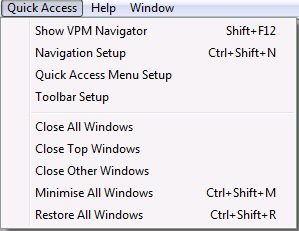
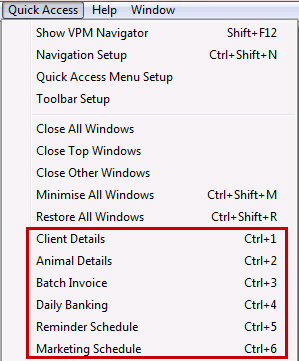
Quick Access is an option that is on the menu bar and offers several shortcuts.
The fixed options are:
You can also set up menu shortcuts and keyboard shortcuts to the areas you most frequently use. These shortcuts can be set up per workstation or for all work stations.

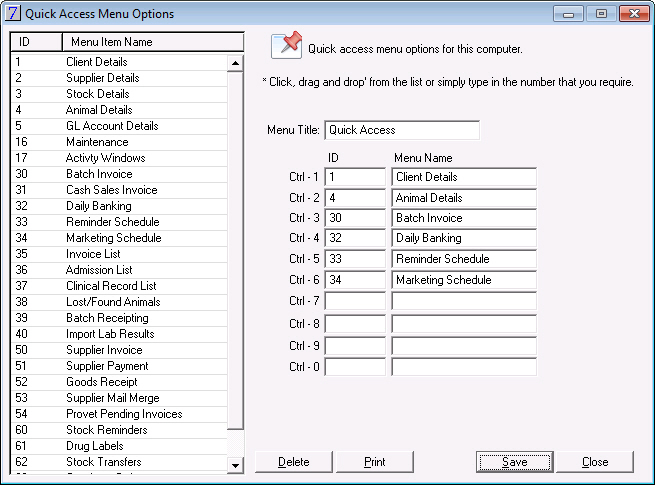
The Quick Access menu will now display the selected shortcuts.
In This Section |
See Also |
